Was this page helpful?
Help & Support
Downloading statement data files
Assigning access to File Downloads
Once you’ve been set up for File Download, users with the Manage Site Administrator permission will be able to assign themselves and other users access to File Downloads.
If you’re a Manage Site Administrator:
- Go to the Administration tab and click User List.
- Click Edit next to your name or the user you would like to enable.
- Click the Customise permissions button at the bottom of the page.
- Tick the Enable box next to Download Statement Files.
- Click Next and then Submit.
- Log out of Internet Banking for Business and then log back in again.
- Click on the Accounts tab. You’ll now see the File Downloads button in the left hand navigation.
- Files will be available to download from the next business day.

How to download files
After being set up, files can be downloaded starting the next day.
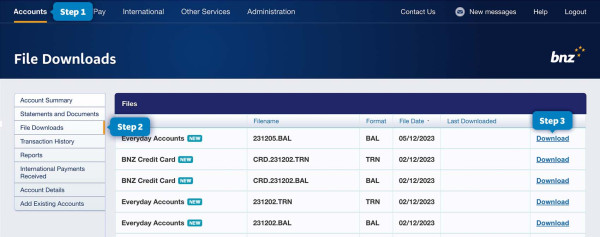
- Go to the Accounts tab.
- Click File Downloads.
- Click Download.
The list will contain files for the last two weeks and the files that haven’t been downloaded will be in bold. Once downloaded, files will be moved to the bottom of the list. You can re-download previously downloaded files by clicking Download Again.
How to change the accounts included in your files
You can edit the accounts you want included in your daily file downloads.
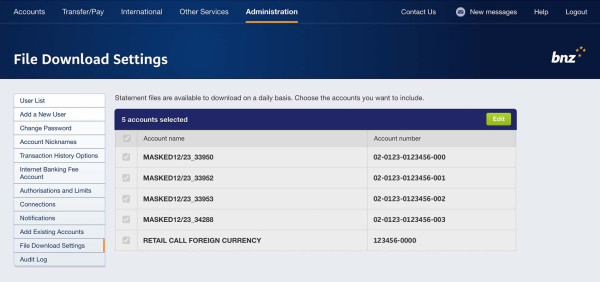
- Go to the Administration tab.
- Click File Download Settings.
- Click Edit and tick the boxes next to the accounts you want.
- Click Save. Your new settings will apply from the next business day.